|
How to rip DVD movies to your portable devices like iPod, iPhone, Zune, PS
How to rip DVD movies to your portable devices like iPod, iPhone, Zune, PSP, BlackBerry, etc.?
Supposing you have quite a lot of DVD movies, what would you like to do with them? You must have choices such as local playing them with your computer, using DVD players for direct playback via your wide screen TV, or ripping them for backup with another blank DVDs. Have you ever thought of loading some of the DVD clips which are attractive enough into your portable devices like iPod, iPhone, Zune, PSP, BlackBerry, etc. so as to enjoy them during your staying time at bus stop or airport, or sharing them with your friends, or something else? If so, this article will show you clearly how to rip DVD movies to your various sorts of portable devices step by step, and both Windows and Mac users can find out a solution here.
Part 1: For Windows users-How to rip DVD movies to your portable devices?
Step 1: Download, install and launch Pavtube DVD Ripper
As soon as you run this program, the following interface will appear:
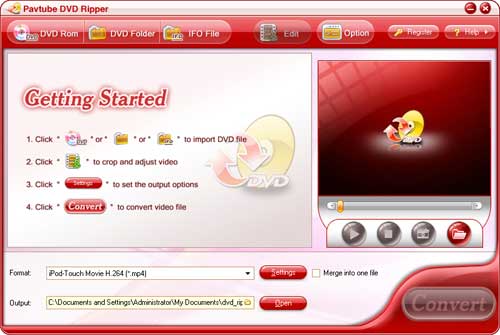
Step 2: Import DVD, select output format for your portable Devices and set destination folder
There are three ways to import DVD files, namely through pressing ¡°DVD Rom¡±, ¡°DVD Folder¡±, or ¡°IFO File¡±. After importing the DVD files, now click the drop-down list of ¡°Format¡± to select a video format for your mobile devices. The output formats are all listed below, and just make a choice according to the types or compatible formats of your portable players.
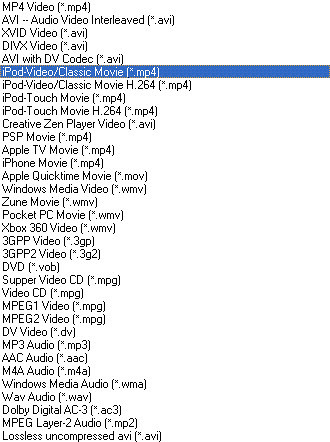
Besides this, you can click the folder icon on the opposite side of ¡°Output¡± to specify where to locate the output files, otherwise, Pavtube DVD Ripper will use the folder set by default. Moreover, if you want to join multiple DVD chapters to be one file, you can check ¡°Merge into one file¡± to realize it.
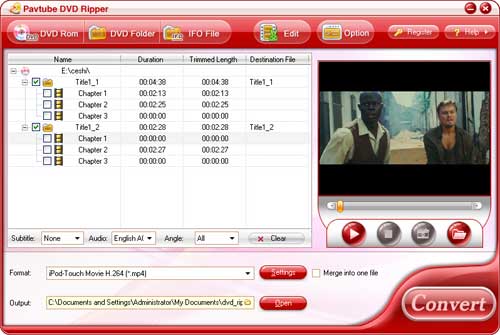
Step 3: Set advanced settings
This converter allows you to adjust video and audio parameters, including video codec, bit rate, frame rate, aspect ratio and so on. Generally speaking, the larger inserted values will produce the better video quality, while the file size will be enlarged.

Step 4: Convert
After you set all the settings, you can click ¡°Convert¡± to start conversion. Once the conversion is completed, you can click ¡°Open¡± to find out the output files.
Tips: Some more editing functions you may need:
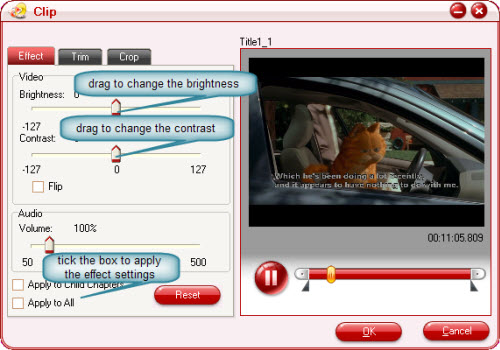
Select a file, and click on the ¡°Edit¡± button, and then you can change the video and audio effect directly.
1.Effect: adjust Brightness, Contract, Audio volume, etc.
Drag the slider bar of Brightness, Contrast, and Volume to change the effect, at the same time, you can preview the effect on the right pane. If the DVD image does not display correctly, you can tick the checkbox "Flip" to get it right. When you find the effect is better after changing the settings, you can choose to apply the effect settings to other files.
2. "Trim": choose video duration time
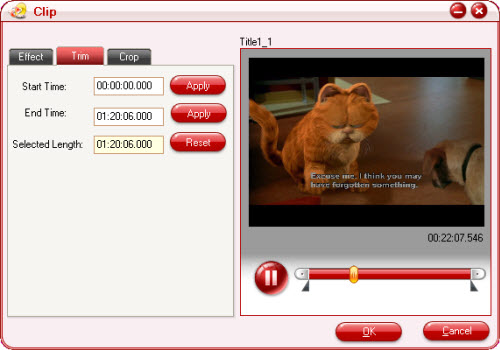
Click on the "Trim" tab, and you will face the window below. Enter the time point for the start time and the end time. You need click the "Apply" button after changing; otherwise, the change will not be valid. Alternatively, you can drag the slider bars to change the start time and end time.
3. ¡°Crop¡±: cut off black edges or the unwanted part of your video
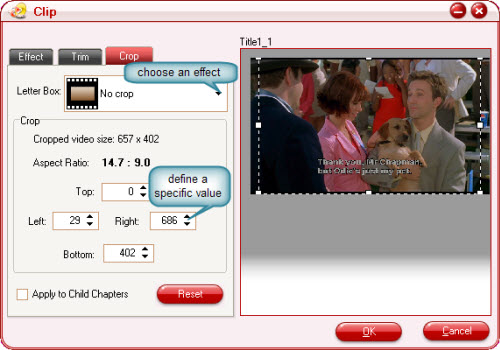
Click on the "Crop" tab, and you can change the image pixels in the following window. Select an option under the drop down list of the "Letter Box", drag the dashed frame on the preview pane, or enter value into the boxes of the four positions to set the pixels you want to cut off. If the file you select to customize is a title, you can tick the checkbox of "Apply to Child Chapters" to get other files with the same settings.
Part 2: For Mac users-How to rip DVD movies to your portable devices?
Step 1: Download Pavtube DVD Ripper for Mac and run it.
Step 2: Import DVD files, set output format and destination folder.
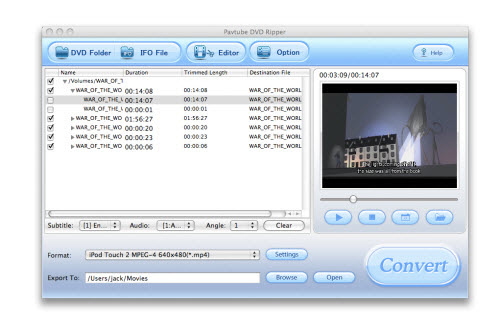
You can add DVD files to it through ¡°DVD Folder¡± or ¡°IFO File¡±. After that, you can click the drop-down list of ¡°Format¡± to select the output format, and hit ¡°Browse¡± to specify where to put the output files.
Step 3: Set advanced settings
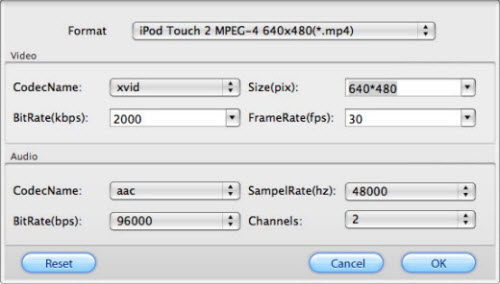
Clicking on ¡°Settings¡± button experienced users can set video Codec Name, Bit Rate, Video Size, and Frame Rate to optimize the quality of the video, as well as setting audio Codec Name, Bit Rate, Sample Rate, and Channels to make the quality of audio better.
Step 4: Convert
After all the settings are done, you can click ¡°Convert¡± to start conversion.
Additional Tips:
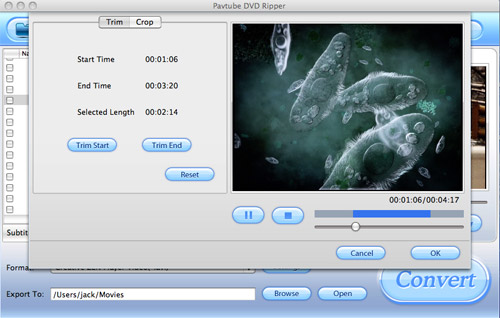
Trim and crop the DVD file before conversion, just click the button ¡°Editor¡±, you will see a pop up window like below. Two sections ¡°Trim¡± and ¡°Crop¡± are available under the ¡°Editor¡± section. ¡°Trim¡± section allows you to select the starting time and the ending time to choose your favorite duration. ¡°Crop¡± section allows you to cut off the black edges of the image to set the aspect ratio. After you complete the customization, you can click button ¡°OK¡± to save them.
|


